
Help & Guide
Everything you need to know about using myHypeGuy — no app required.
What is myHypeGuy?
myHypeGuy keeps your group coordinated entirely by text. Organizers create events, add members, and send reminders. Members can ask questions any time — and our AI answers them instantly, 24/7. No app to download, no account to create.
Setting up your event
- Sign up & launch the setup wizard — Create your account at app.myhypeguy.com. The step-by-step wizard walks you through everything: event name, dates, and key details.
- Add your event details & notes — Load your itinerary, hotel info, activity times, dress codes, and anything your group will ask about. This is what the AI uses to answer questions.
- Import your contacts — Add members manually or bulk-import from your contacts list. Each member gets a welcome text automatically — no action needed on their end.
- Broadcast & remind — Send announcements and schedule reminders for activities from your admin dashboard. One click, everyone's informed.
- Let AI handle the questions — Members text questions 24/7. The AI answers from your notes — and searches the web when it needs real-time info like hours or addresses.
📇 Adding members
Getting your group into myHypeGuy takes about 60 seconds. Choose either method from the Members tab in your admin dashboard:
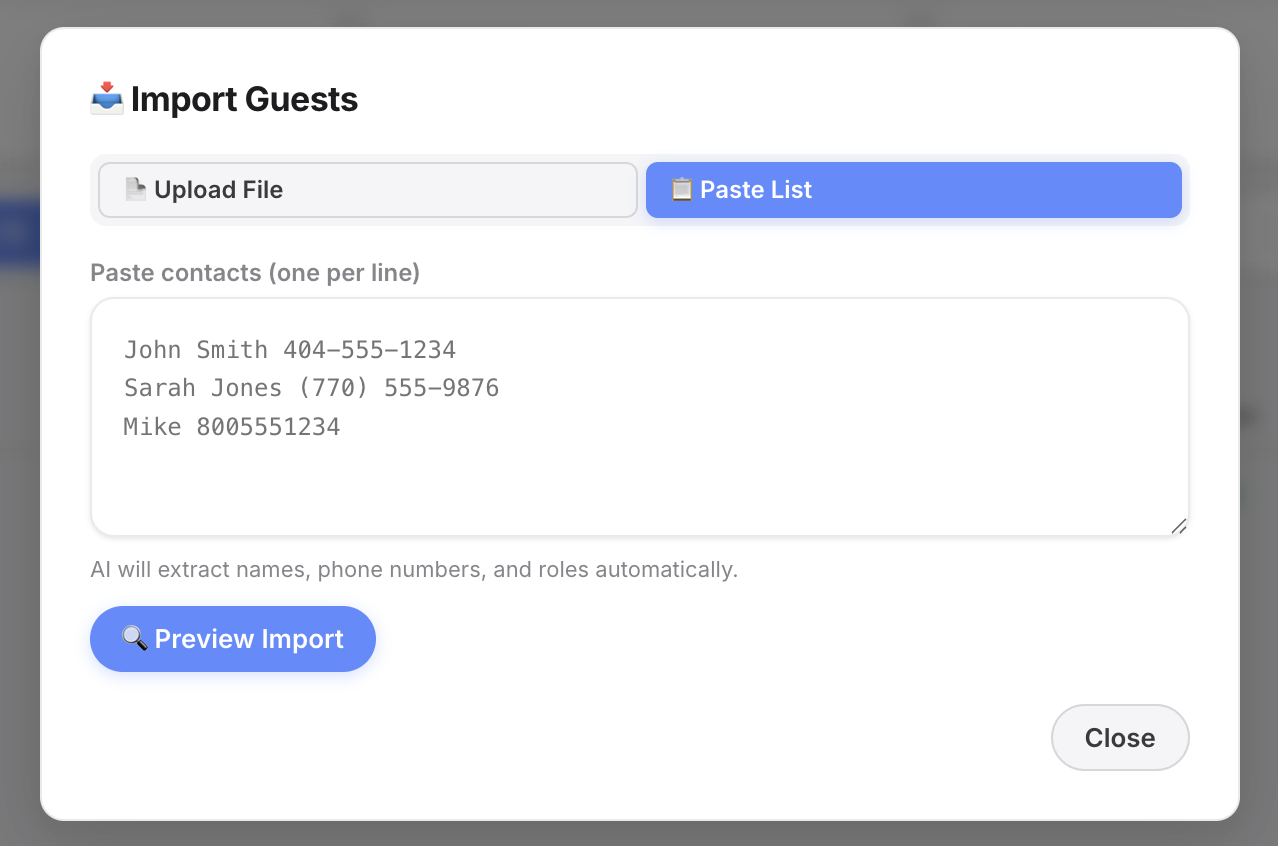
Two ways to import
- 📂 Upload a file — Upload a CSV or spreadsheet (.xlsx). myHypeGuy reads names and phone numbers automatically and shows you a preview before anything is sent.
- 📋 Paste a list — Copy contacts from your phone, Notes app, or spreadsheet and paste them in — one per line. AI extracts names and numbers for you.
Example paste format:
John Smith 404-555-1234
Sarah Jones (770) 555-9876
Every imported member gets a welcome text automatically when you launch. No action needed on their end.
📝 Loading your event details
The more detail you give myHypeGuy, the better it answers your group's questions. Your admin dashboard has two areas to fill in:
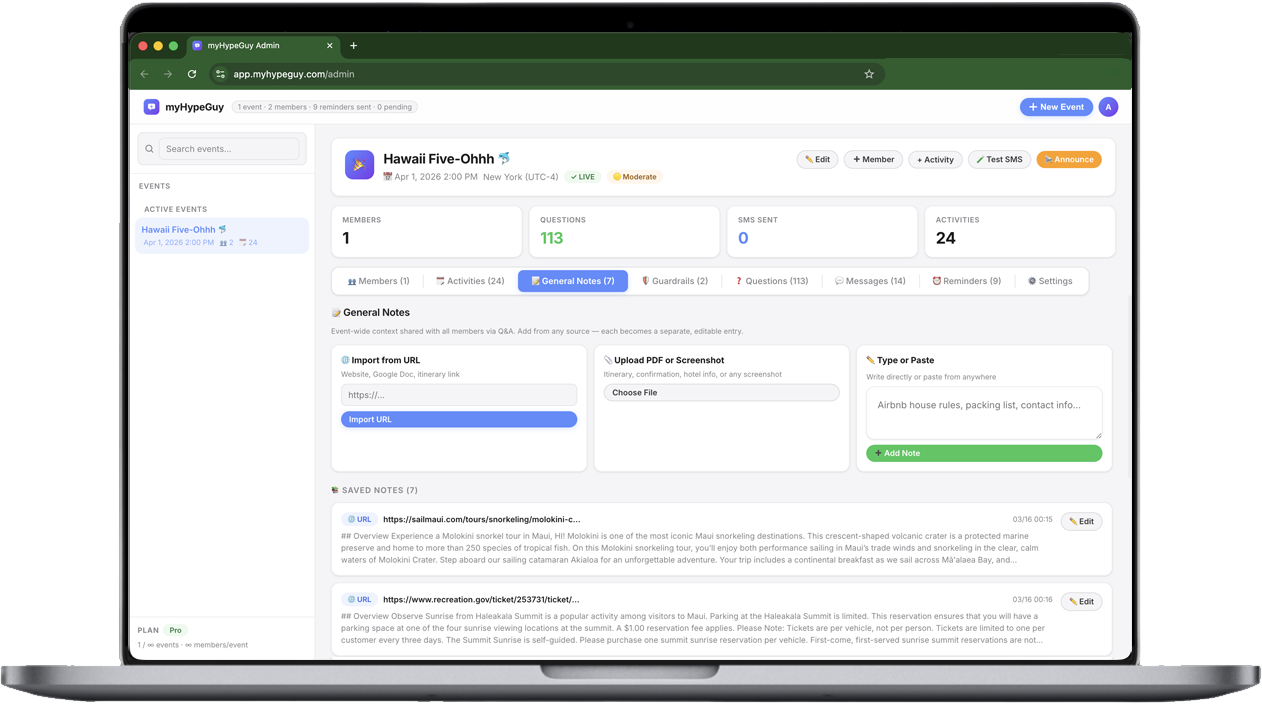
General Notes tab — Import from a URL, upload a PDF or screenshot, or just type/paste anything: hotel info, packing lists, dress codes, emergency contacts. The AI reads it all.
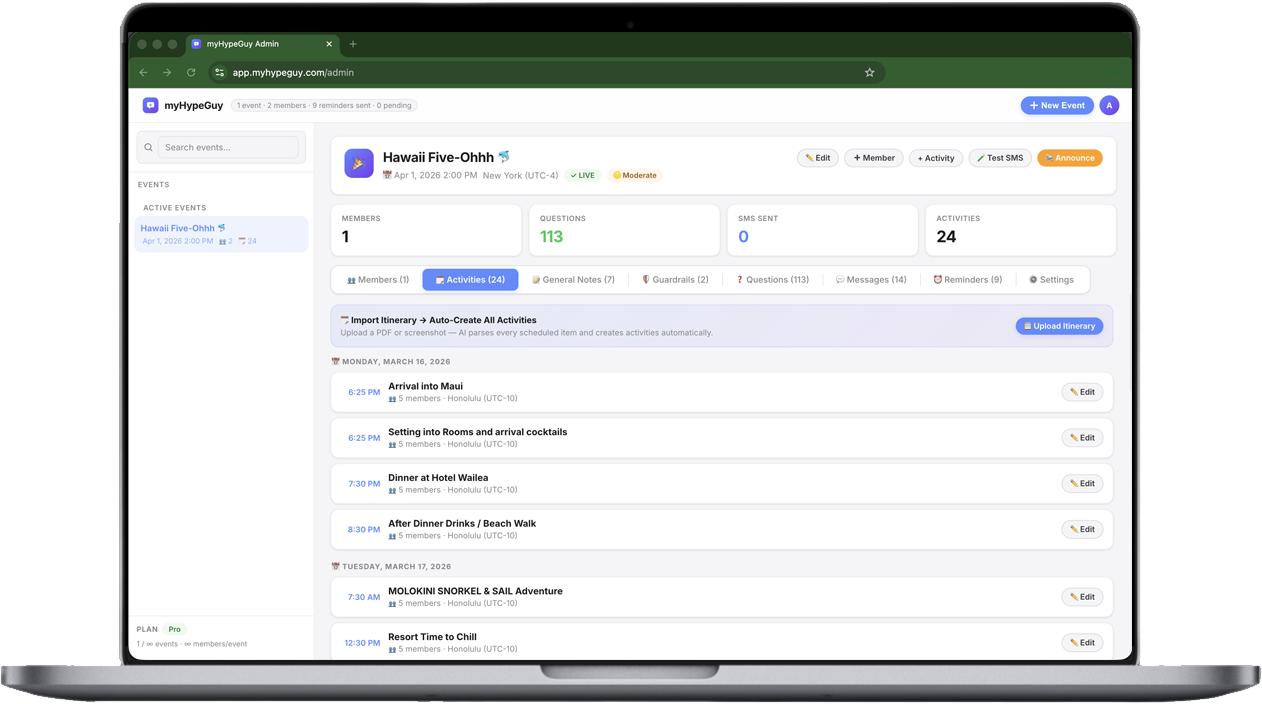
Activities tab — Add your full schedule here. Each activity shows up in reminders and helps the AI answer time-based questions like "What time is dinner?"
Key organizer features
A guided step-by-step flow to get your event configured in under 5 minutes — no guesswork.
Set reminders for activities and departures. Choose how far in advance — members get a text automatically.
Send a message to your entire group at once from the dashboard. Updates, changes, last-minute info.
Members ask questions by text and AI answers instantly. Included in all paid plans. Searches the web when needed.
See every question your group asked and how AI answered. Download as CSV from the Questions tab.
Set rules for what the AI will and won't answer — keep responses on-topic for your event.
How it works for members
- Get invited — Your organizer adds your phone number. You'll receive a welcome text with event details.
- Stay informed — You'll receive reminders and announcements leading up to your event.
- Ask anything, any time — Just text your question. The AI answers instantly from the event info your organizer loaded — even at midnight.
Texting with myHypeGuy
There are no special commands to remember. Just text naturally — like you're asking a person.
Text anything: "What time does the shuttle leave?" or "What should I pack?" The AI will answer from your event details.
Opt out and stop all messages immediately. Required by law — always honored instantly.
Get a quick reminder of your event name and how to reach support.
If the AI doesn't have an answer, it'll tell you and suggest contacting your organizer directly. It won't guess.
Frequently asked questions
Do members need to pay or create an account?
No. Members receive and reply to texts for free — no account, no app, no sign-up required. Only the event organizer pays for myHypeGuy.
Will I be charged for texts?
Standard message and data rates from your carrier may apply (same as any SMS). myHypeGuy itself does not charge members.
How do I stop receiving messages?
Text STOP at any time. You won't receive further messages from myHypeGuy.
What if the AI can't answer my question?
It'll say so and suggest contacting your organizer. If the info is publicly available (restaurant hours, venue details, etc.), it may also search the web and send you a sourced answer.
Is my phone number shared?
No. See our Privacy Policy for full details.
How do I edit my event details after setup?
Log in to your admin dashboard at app.myhypeguy.com. You can update notes, add activities, manage members, and send announcements at any time.
Contact & support
Having trouble? We're here to help.
Email: support@myhypeguy.com